Method 01
Importing via drag and drop
Note: This installation method is the fastest, but can be unreliable. Some Android devices and file browser apps do not support drag and drop between apps. If you cannot drag and drop from your file browser app, please follow the steps under "Method 02" further down this page.
1. Locate the downloaded .zip file on your device and tap it to unzip
2. Make sure that the file browser app is installed on your device and that Clip Studio Paint is running.
Note: The file browser app that comes pre-installed on your device may be called Files or My Files, depending on the manufacturer.
3. Show both apps in split-screen view.
Note: The procedure for setting apps in split screen depends on the manufacturer of the tablet or smartphone. Please check the manufacturer of your device for instructions.
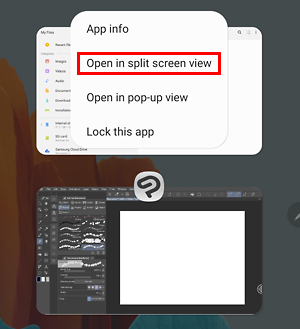
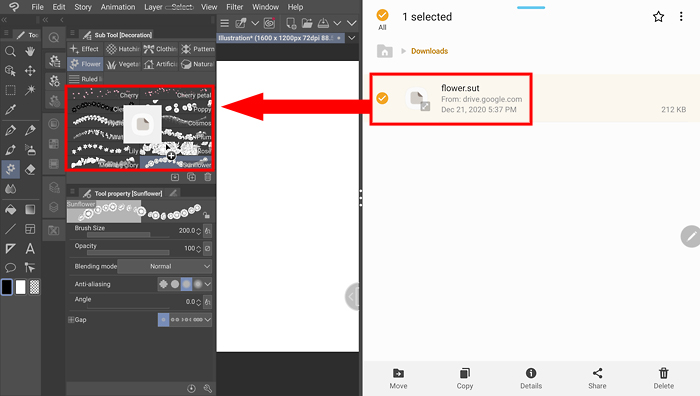
4. Import the brush file(s) by dragging it into the Sub tool palette. You can select multiple files and drag them all at once.
Method 02
Importing from the Sub Tool menu
1. Tap the menu button in the upper left corner of the Sub tool palette.
Note: If you are using a smartphone, long-press the sub tool selection screen to display the menu.
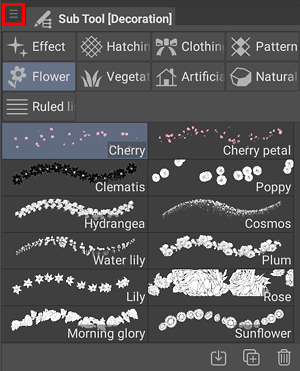
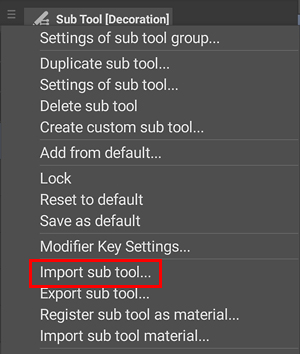
2. Select Import sub tool.
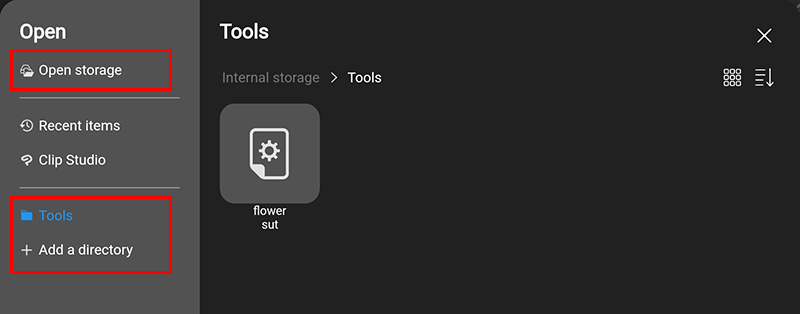
3. Open the location of your downloaded files from the file picker that appears.
- If you do not see the following file picker, please update to the latest version here.
- When you select Open storage, the screen displayed will differ depending on the type of device you are using.
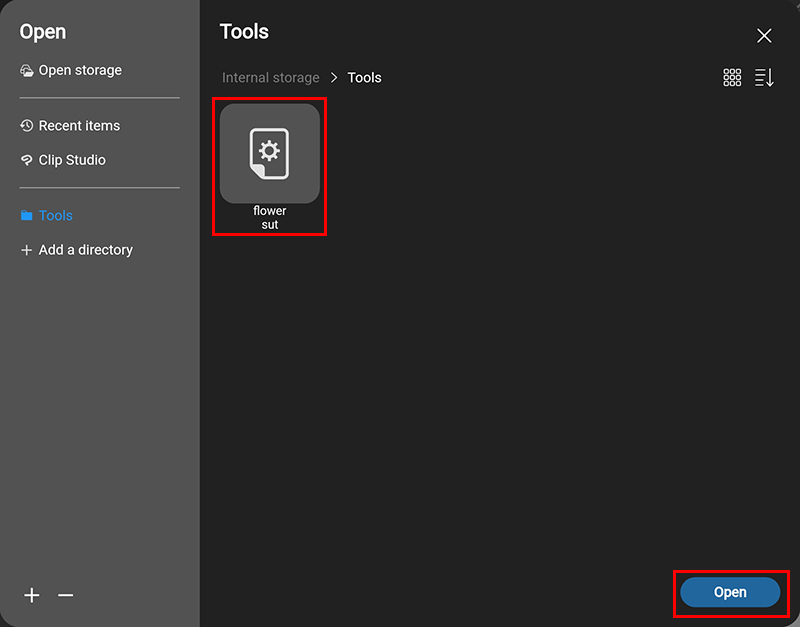
4. Select the brush file and tap Open.
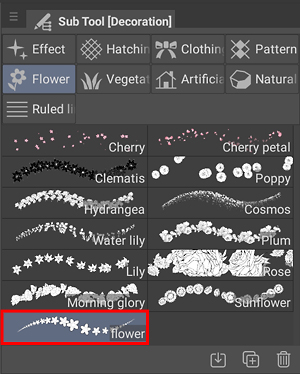
The brush file will be imported as a sub tool.
Comments
Article is closed for comments.